STL to 3MF converter
Move from plain STL files to smarter 3MF print handoffs.
STL files are useful, but they are limited. PrintNext helps makers preview models, plan color, connect filament inventory, estimate cost, and prepare a cleaner 3MF workflow before printing.
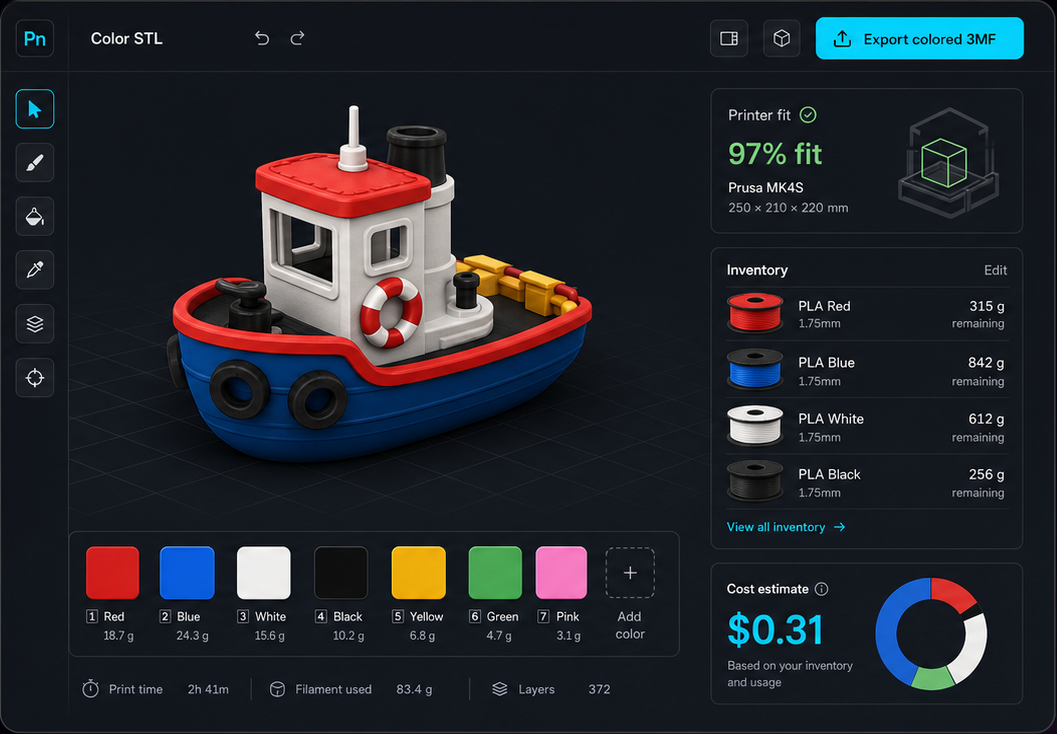
Upload an STL
Preview the model before sending it into the next part of your workflow.
Add planning context
Connect printer fit, material, color choices, grams, and cost information.
Export richer handoff
Move toward a 3MF file that carries more useful print preparation than a plain STL.
Why 3MF matters
A better handoff for modern 3D printing workflows.
Not sure when STL is enough and when 3MF is worth using? Read the STL vs 3MF comparison.
Need colors? Open Color Studio.
STL preview
Inspect the model and file before committing to the next step.
Color planning
Prepare multi-color decisions before export.
Inventory context
Use real filament colors and availability as part of the workflow.
Cleaner handoff
Move prepared work toward printing instead of repeating setup later.
Convert a local STL and check the download
The free converter accepts a local STL without requiring an account for a basic download. Use it for a file-format handoff, then inspect the result in your slicer. Conversion preserves a mesh workflow; it does not invent a paint plan, recover CAD history, or automatically make every model printable.
- Open the STL to 3MF tool and choose your STL file. Wait for the model preview and review its overall shape before continuing.
- Convert the file, then download the 3MF to your device. Saving into a private Workspace or recording inventory use requires an account.
- For detailed automatic or manual color work, continue through Color Studio and review the output requirements shown there. The free conversion action is a separate workflow.
- Open the downloaded 3MF in your slicer. Select the correct printer and material, verify scale and orientation, and inspect the slice before generating printer instructions.
Worked example
A plain STL phone stand can become a 3MF without gaining new geometry or colors. Keep the original, compare a known dimension after conversion, and slice with your own profile. If you need a two-color design, assign and verify those colors in a suitable tool before expecting them in the exported project.
Troubleshooting and checks
Use the symptom to choose the next check. Change one variable at a time and keep the original file or settings so you can compare the result.
| What you notice | What to check next |
|---|---|
| The file does not load | Check that it is a valid STL rather than a renamed archive or another format. Try the original in a trusted viewer. |
| The converted model is still one color | Conversion alone does not create multicolor assignments. |
| The slicer asks to change printer settings | Choose and verify your own printer profile before printing. |
Use conversion as part of the full PrintNext workflow.
The strongest workflow connects conversion to inventory, cost, printer fit, and Color Studio instead of treating each file as a one-off task.