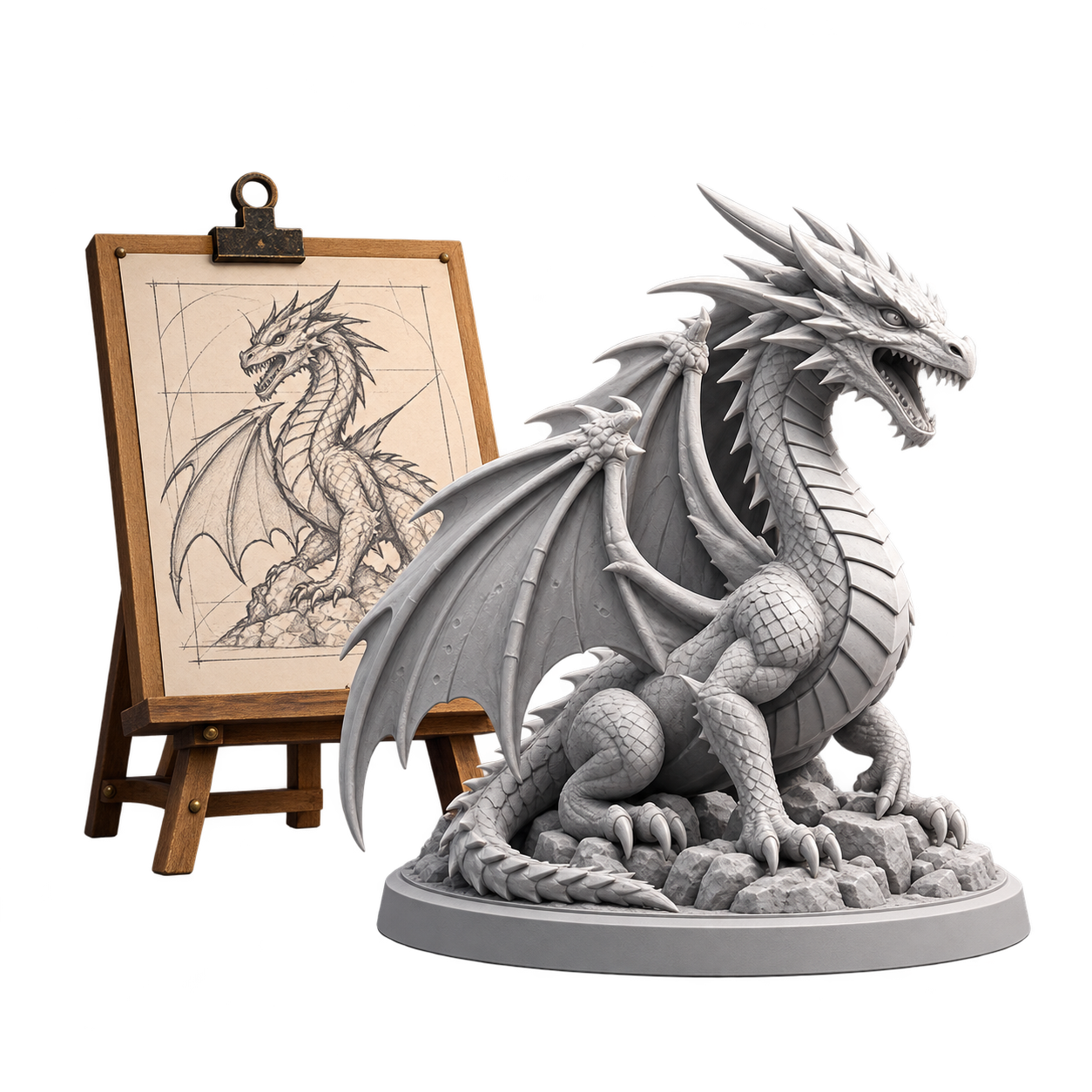
Stage 01
Create or choose the model
Start with an idea or reference image in Create Studio, or bring an existing STL or 3MF into the project.
Explore Create Studio
Follow a complete 3D printing workflow from an idea or STL through project organization, printer and filament checks, model preparation, slicing, printing, cost tracking, and results.
Last updated 2026-09-30
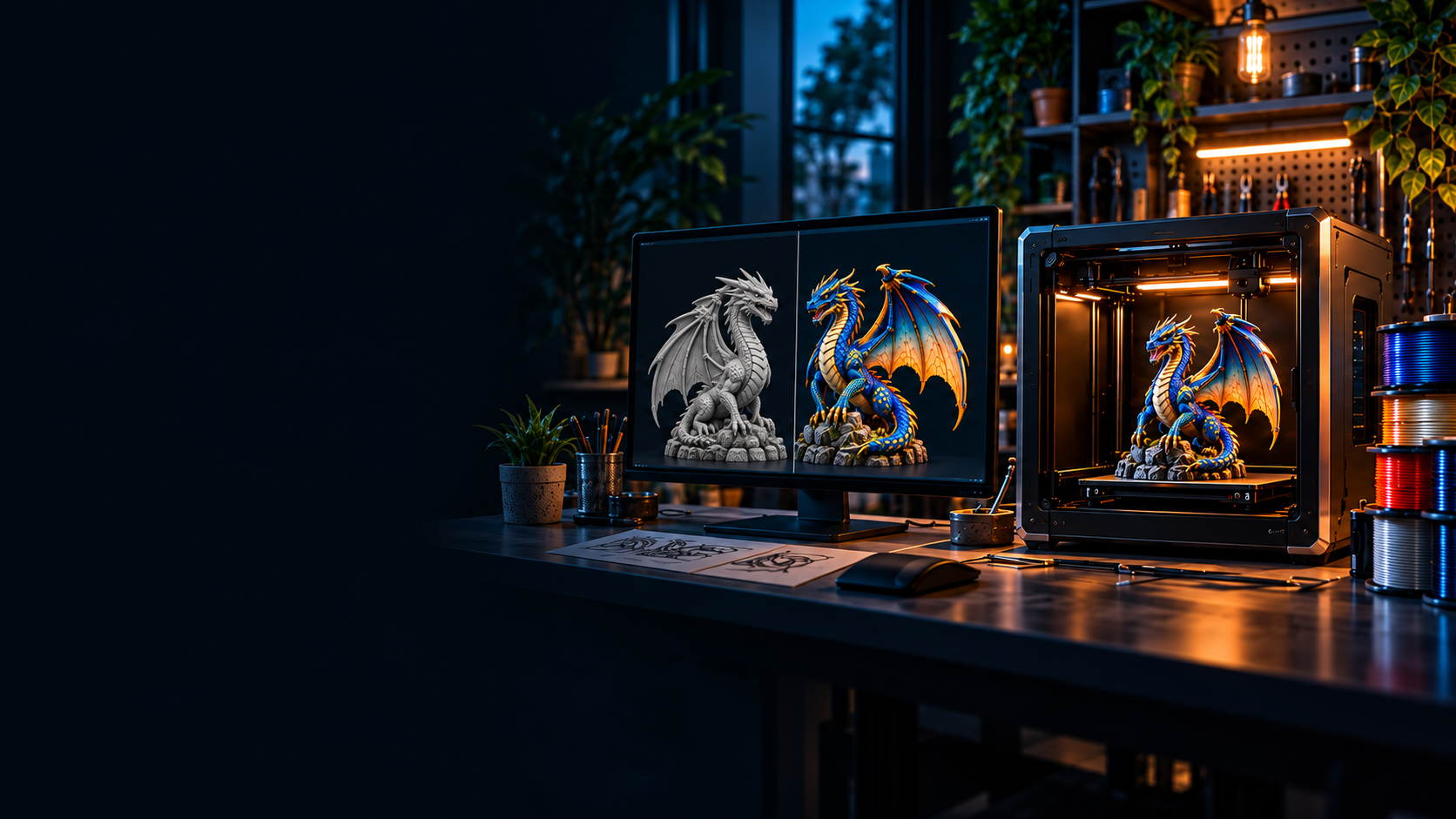
Illustrated example
This dragon example shows how the stages connect. The same process works for a downloaded model, a functional part, or something created from scratch.
Stage 01
Start with an idea or reference image in Create Studio, or bring an existing STL or 3MF into the project.
Explore Create Studio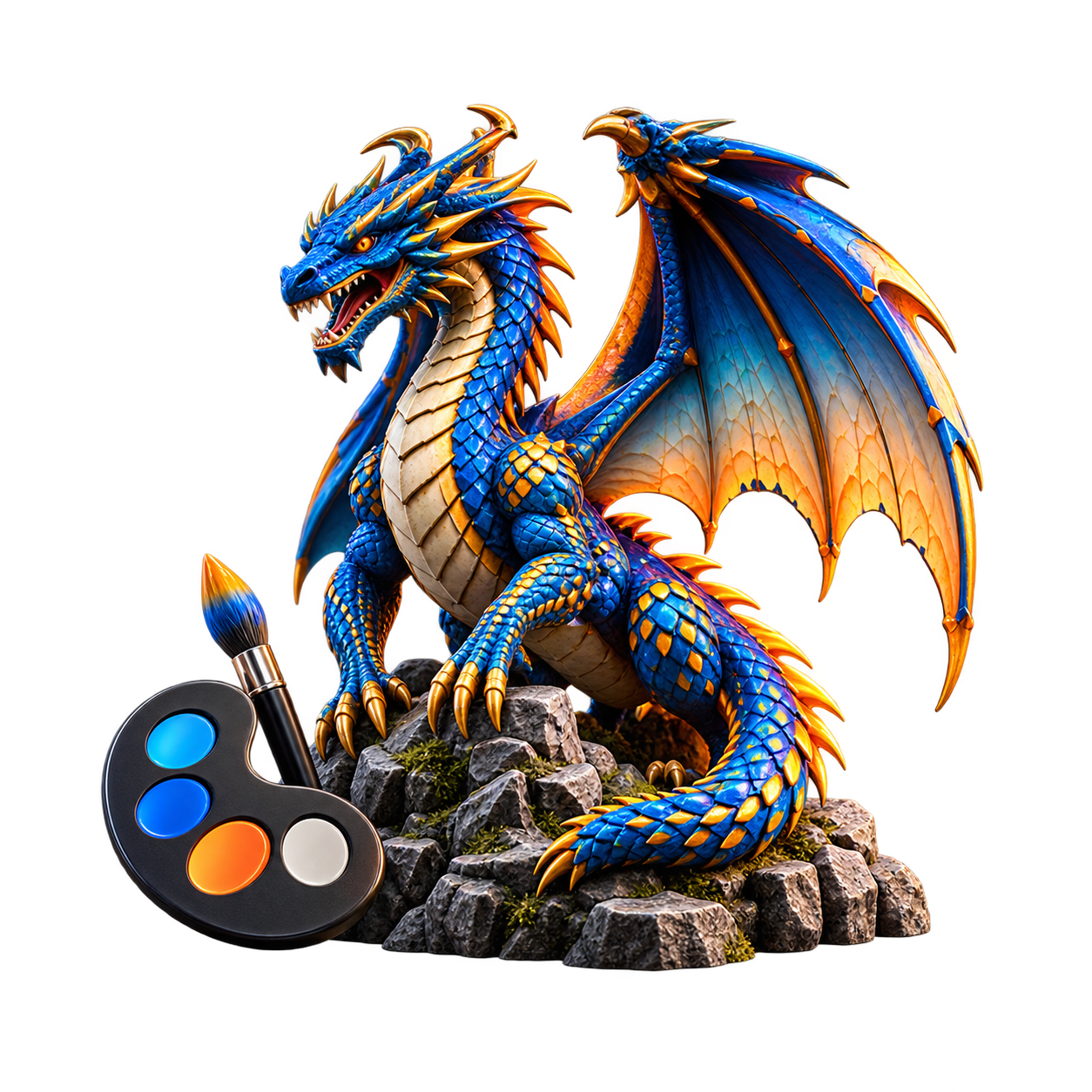
Stage 02
Use automatic coloring for a fast first pass, then refine the model manually and match colors to filament you own.
Explore Color Studio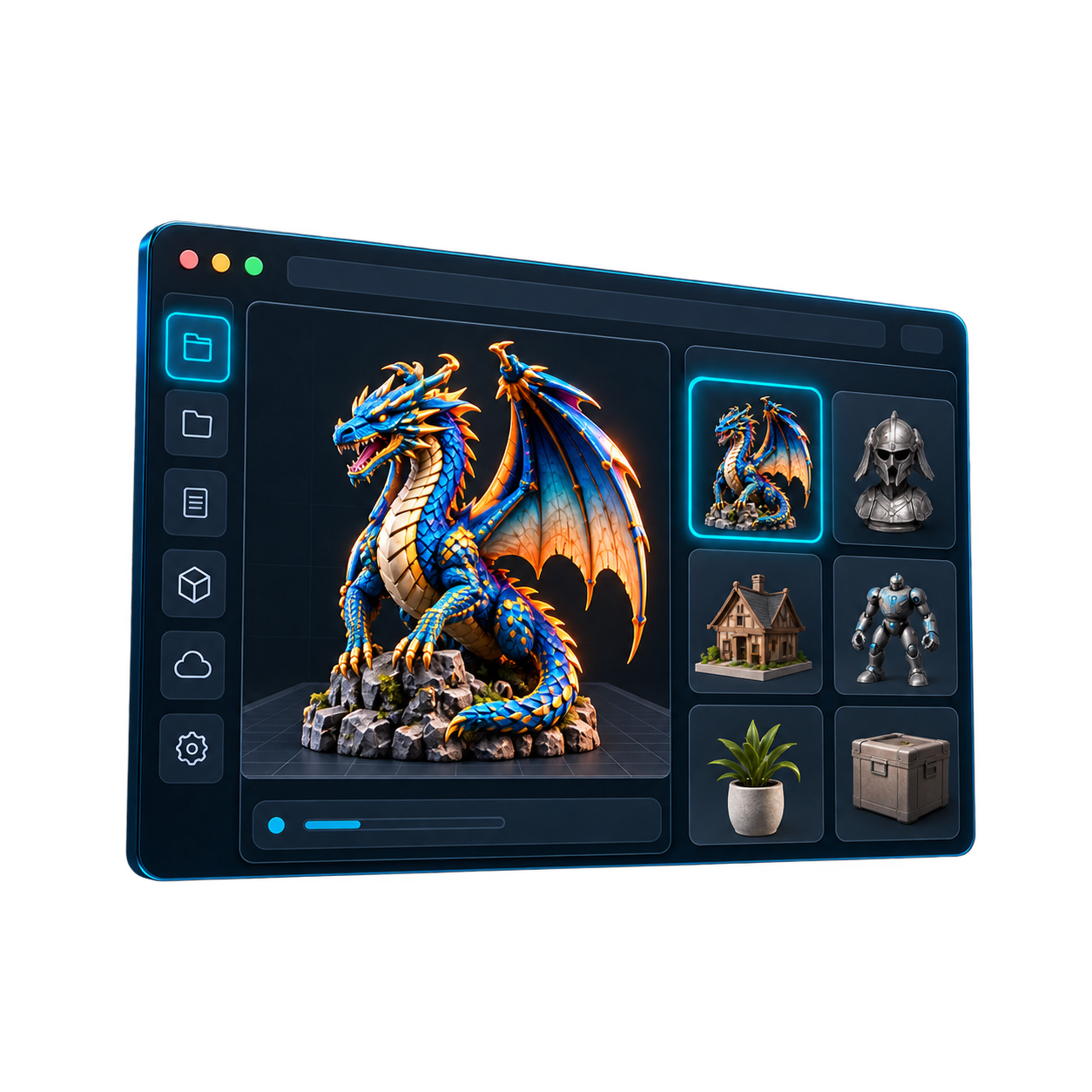
Stage 03
Store the source model, prepared exports, notes, and revisions in one private project instead of scattered folders.
Open Private Workspace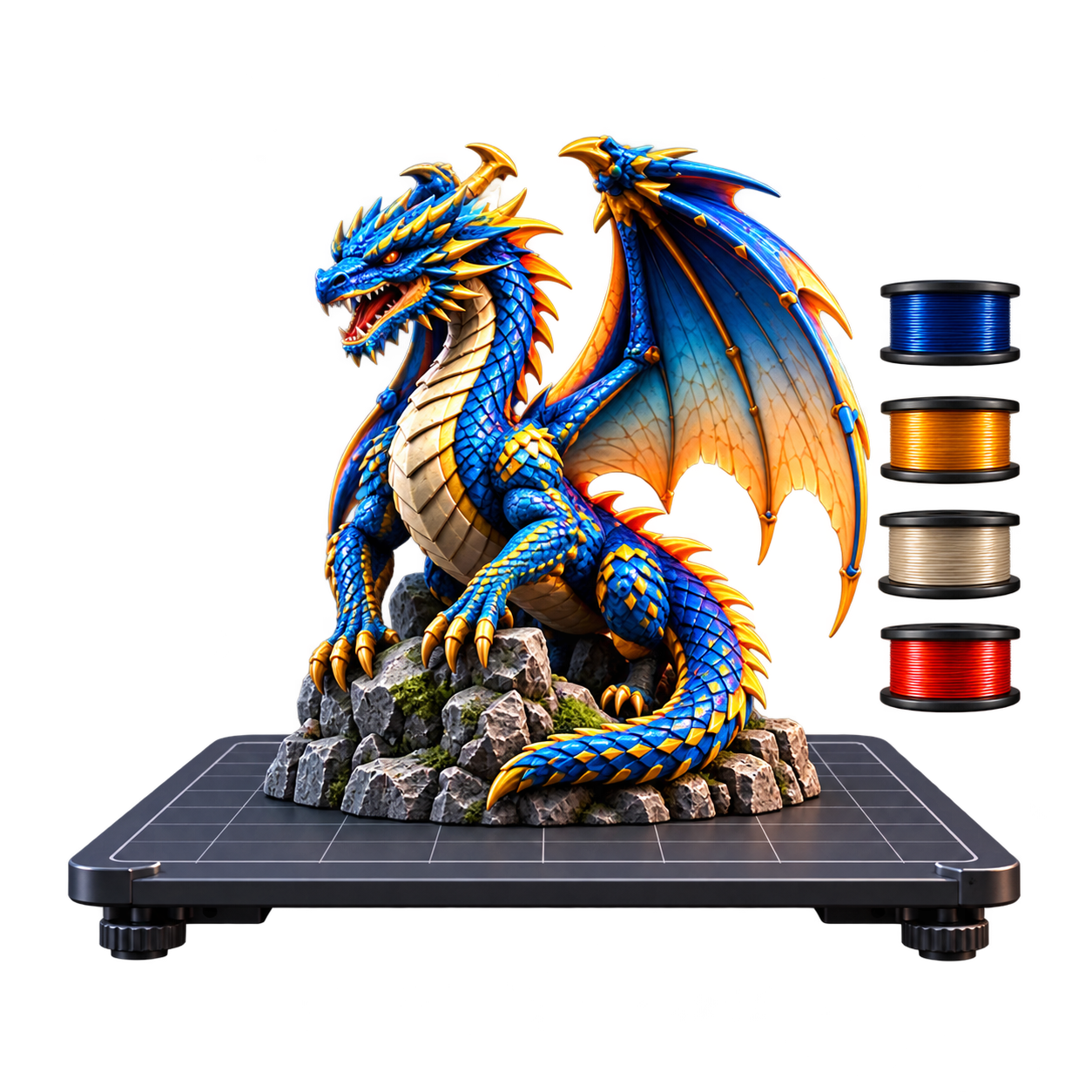
Stage 04
Check the intended printer and available filament before slicing. Final orientation, supports, and toolpaths remain your slicer’s job.
Connect Your Setup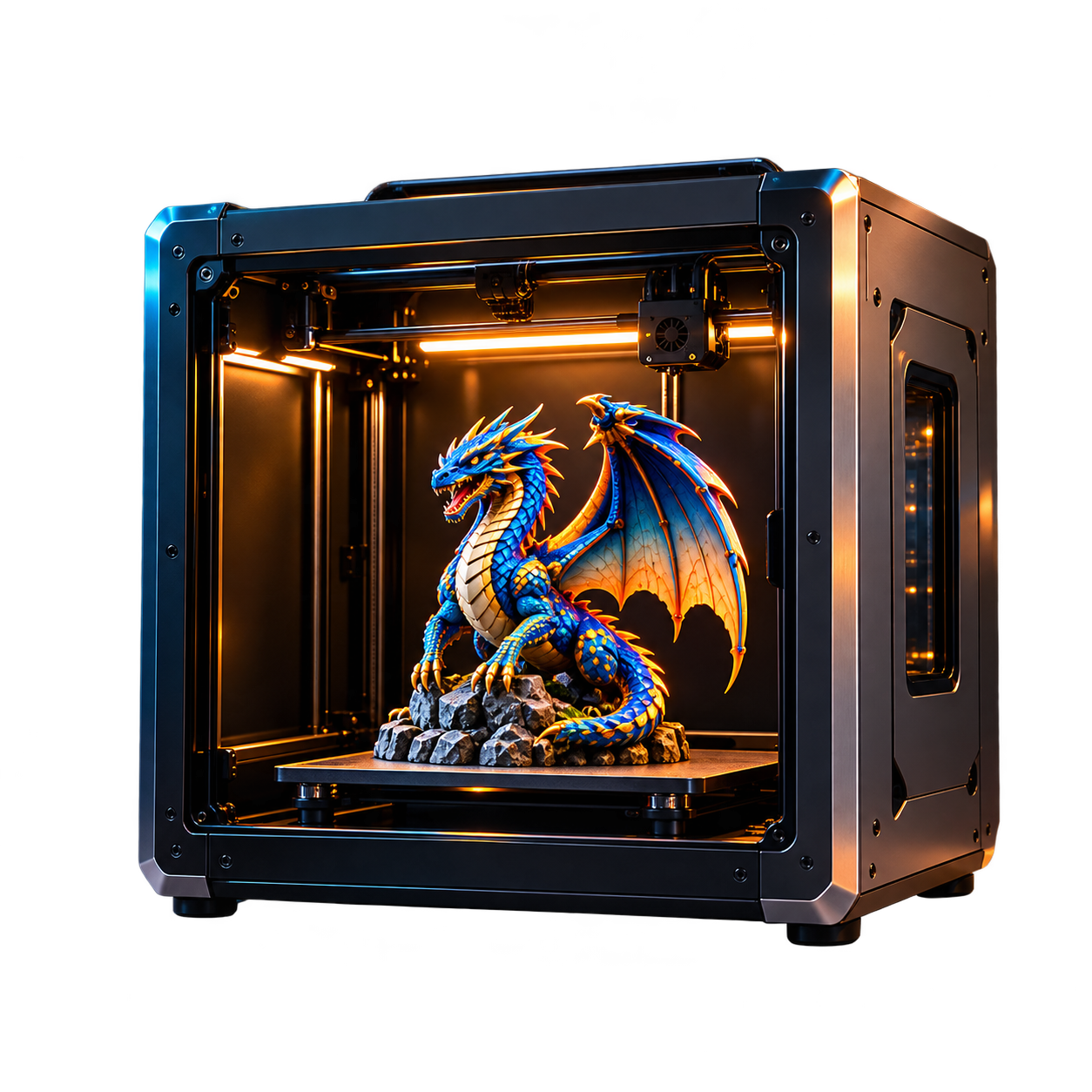
Stage 05
Print the prepared file, record what happened, and keep the useful settings and lessons with the project for the next version.
Review Your ProjectsOn this guide
Step 1
Find or create a model
Step 2
Save the project
Step 3
Verify filament
Step 4
Prepare the model
Step 5
Export and slice
Step 6
Step 7
Track results
Step 8
Review and improve
Browse recommendation pages matched to this topic, then use PrintNext to connect the model, printer, filament, cost, and finished result.
Useful and practical prints
Discover functional 3D print recommendations for organizers, holders, clips, brackets, printer accessories, repair parts, and practical projects.
Beginner-friendly prints
Browse beginner-friendly 3D print recommendations that are simple, useful, low-risk, and matched to your printer and filament workflow.
Articulated and flexi prints
Find articulated and flexi 3D print recommendations that are fun to print, easy to share, and realistic for your printer and filament setup.
A successful print begins long before a printer starts moving. Most projects move through discovery, organization, file preparation, material checks, slicing, printing, and result tracking. The hard part is keeping those steps connected instead of scattered across websites, folders, notes, slicers, and memory.
| Stage | Question it answers | PrintNext connection |
|---|---|---|
| Discover | What should I print next? | Recommendations |
| Organize | Where are the files, notes, and versions? | Private Workspace |
| Verify | Will this fit and do I have the material? | Printers and Inventory |
| Prepare | Does the file need scaling, repair, color, or 3MF export? | Color Studio |
| Track | What did it cost and what worked? | Cost planning and print history |
Imagine starting with a dragon concept. The useful workflow is not merely generating the shape: it is preserving the source, deciding how the model should be colored, checking the intended printer and filament, verifying the prepared export in a slicer, and recording the physical result so the next version improves instead of starting over.
| Decision | Example action | Useful result |
|---|---|---|
| Model | Create the dragon or import an existing STL or 3MF | A source model with known origin |
| Color | Build a palette from filament you actually own | A deliberate multicolor plan |
| Project | Save source files, exports, and notes together | One durable project record |
| Preparation | Confirm setup context, then inspect the export in the slicer | A printer-specific plan before starting |
| Result | Record material, cost, quality, and revision notes | Evidence for the next print |
Most makers do not run out of models. They run out of clarity about which model makes sense today. A useful workflow helps answer whether the print fits your printer, uses filament you have, is worth the time, and belongs in your current project queue.
Downloading an STL file is only the beginning. Without a workspace, useful models become duplicate downloads, forgotten projects, random desktop folders, and lost versions. A project workspace turns scattered files into something you can actually finish.
Before printing, it helps to know which printer should run the job, whether the model fits the build volume, what material is required, and whether enough filament is available. Inventory and printer profiles reduce failed starts and unnecessary purchases.
Once a project is selected, preparation begins. This may include scaling the model, repairing mesh issues, assigning colors, planning multi-color prints, or exporting a modern file format such as 3MF.
After preparation, the model moves into a slicer such as Bambu Studio, Orca Slicer, or PrusaSlicer. The slicer converts the model into printer instructions and lets you verify print time, material use, supports, layer height, and cost before committing.
The physical print creates useful information: filament consumed, print duration, material cost, success or failure, and settings that may be worth repeating. That information is easy to lose unless it becomes part of the workflow.
One of the most overlooked parts of 3D printing is documenting what happened. A searchable print history helps you remember what worked, what failed, what it cost, and which settings deserve to be reused.
A finished project becomes more useful when you compare the plan with the result. Review the material used, actual duration, visible defects, fit, color choices, and any revision notes before starting the next version.
Most 3D printing tools solve only one piece of the process. One tool stores files, another slices models, and another tracks inventory. PrintNext connects the planning layer around those tools: recommendations, printers, inventory, private projects, model preparation, cost context, and print history.
The connected workflow is simple: find or create a model, save the project, verify printer and filament context, prepare and color the model when needed, export for slicing, print the project, track material usage and cost, record the result, and use what you learned for the next version.
For a colored figurine, keep the concept reference, generated or imported source, prepared color version, and final slicer project identifiable. After printing, record which exact version produced the result. If a later revision changes the base, recheck size, support, and material use instead of carrying forward the earlier estimate unchanged.
For a labeled storage bin, the checkpoints are the correctly sized bin, the readable color plan, the verified slicer project, and the finished print record. A failure at one checkpoint should send you back to that step. Repainting does not fix incorrect dimensions, and switching filament does not restore a missing label.
Use the symptom to choose the next check. Change one variable at a time and keep the original file or settings so you can compare the result.
| What you notice | What to check next |
|---|---|
| The wrong revision gets printed | Identify the selected model before slicing. |
| Colors disappear during transfer | Check the exported format and destination support. |
| The next print cannot be reproduced | Save the project and settings alongside the outcome, not only the rendered image. |
The hardest part of 3D printing is rarely the printer itself. The challenge is organizing files, managing materials, preparing models, tracking costs, and keeping projects connected from start to finish. A structured workflow helps turn scattered models and supplies into completed prints with less waste, better organization, and more consistent results.
FAQ
No. Beginners can use it to organize the workflow, while experienced makers can use it to manage printers, inventory, costs, projects, and repeatable settings.
No. PrintNext helps with planning, inventory, recommendations, project organization, and color preparation. You still verify and slice files in your slicer.
Color Studio helps prepare and color models before exporting a 3MF for a slicer workflow.
Print history helps you remember filament use, cost, settings, model revisions, and what to improve next time.
A complete workflow should include model discovery, file organization, printer fit, filament checks, model preparation, slicing, printing, cost tracking, and final results.
Project organization keeps original files, exports, notes, revisions, slicer decisions, and final results connected so useful work is not lost across folders and downloads.
Yes. You can create a new model from an idea or approved reference image, or begin with an existing STL or 3MF. From there, the same organization, setup checks, preparation, slicing, printing, and result-tracking stages apply.
Verify orientation, scale, supports, walls, infill, toolpaths, printer settings, estimated material use, and print time. PrintNext helps connect the planning context, but the final slicer preview remains authoritative for the machine-ready job.
Your next step
Open your workspace to organize model files, settings, and project notes so you can return to the right version for your next print.
Find models that fit your printer, filament, and workflow.
Color STL models with AI or manual tools and export a slicer-ready multicolor 3MF.
Keep model files, notes, revisions, and print plans together.
Track filament colors, materials, and remaining spool amounts.
Explore approved models and real PrintNext creations.
These pages connect the same workflow from file format decisions to color planning, inventory, and print cost.
Start Here
Learn how PrintNext connects model creation, print recommendations, printers, filament, files, color preparation, costs, and print history.
Start Here
See how PrintNext connects print ideas, printers, filament inventory, private files, color preparation, cost planning, and finished print history.
Start Here
New to 3D printing? Learn how 3D printers work, how to choose filament, prepare models, slice files, and complete your first successful print.
Format & Workflow
Learn how to color STL files, plan a multi-color workflow, and export a slicer-ready multicolor 3MF for modern slicers.
Format & Workflow
Compare STL and 3MF for geometry, color, materials, slicer handoff, and multi-color printing workflows.
Format & Workflow
Learn when to convert STL to 3MF and how to use 3MF as a better handoff format for modern 3D printing workflows.
Workspace & Cost Planning
Track each filament spool by material, color, and remaining weight. Plan multicolor jobs, reconcile inventory, and avoid running out mid-print.
Workspace & Cost Planning
Learn how to calculate the true cost of a 3D print, including filament, electricity, failed prints, machine wear, and project planning.
Workspace & Cost Planning
Learn what affects filament usage in 3D printing, including scale, infill, walls, supports, layer height, and multi-color purge.
Workspace & Cost Planning
A practical system for organizing STL files, 3MF projects, print notes, filament choices, and finished 3D printing projects.
Workspace & Cost Planning
Learn how to manage multiple 3D printers by tracking build volume, nozzle size, materials, maintenance, printer fit, queue planning, and project history.
Workspace & Cost Planning
Learn how to track 3D print costs across filament, electricity, failed prints, machine time, labor, and project history.