Illustration of a multicolor robot model on screen and in a 3D printer
Slicer Workflows

OrcaSlicer Color Painting Guide

Turn a plain model into a multicolor print. Learn to assign filaments, paint details, save your 3MF, and check the sliced result.

Quick answer

To color a model in Orca Slicer, import the model, select your printer, add the filaments you plan to use, and open Color Painting with the model selected. Assign colors to the areas you want to print, slice the plate, and inspect the filament preview. Save an Orca Slicer project as 3MF to retain your editable project setup.

Painting a model does not give a printer automatic color-changing capabilities. Your printer must support the required filament changes, either through compatible hardware or a correctly configured manual-change workflow.

Want a simpler starting point for coloring?

PrintNext Color Studio lets you explore colors in your browser with AI-assisted coloring, selectable regions, and hands-on painting tools. Develop your color scheme, refine the details, then export a multicolor 3MF for final setup and slicing in OrcaSlicer.

Last updated 2026-09-29

What you need before painting

Start with a printable model, your intended filament colors, and a printer configuration that matches your actual machine.

For your first multicolor project, choose a model with a few large, clearly defined color areas. A figure with a body, eyes, and a base is easier to check than a model covered in tiny decorative markings.

Before adding color, confirm:

  • Model size: The model fits your build volume at the intended scale.
  • Geometry: There are no unresolved mesh errors or missing surfaces.
  • Orientation: The model sits in a practical printing position.
  • Detail size: Small features are large enough for your nozzle and print settings.
  • Filaments: You have the colors and enough material to finish the job.
  • Printer capability: Your setup can perform the color changes the model requires.

Using different colors of the same compatible material is a simpler starting point than combining materials with different temperature, adhesion, or cooling requirements.

Can you print multiple colors with one nozzle?

Yes. A single nozzle can print multiple colors by switching filament during the print.

An automatic filament-changing system can perform repeated changes when supported by the printer configuration. Without that hardware, manual changes require compatible firmware and a properly configured pause or filament-change workflow. Orca Slicer documents a manual filament-change option for these setups.

Manual changes are most practical for a few transitions at selected heights. A character with several colors on almost every layer can require too many changes to handle comfortably by hand.

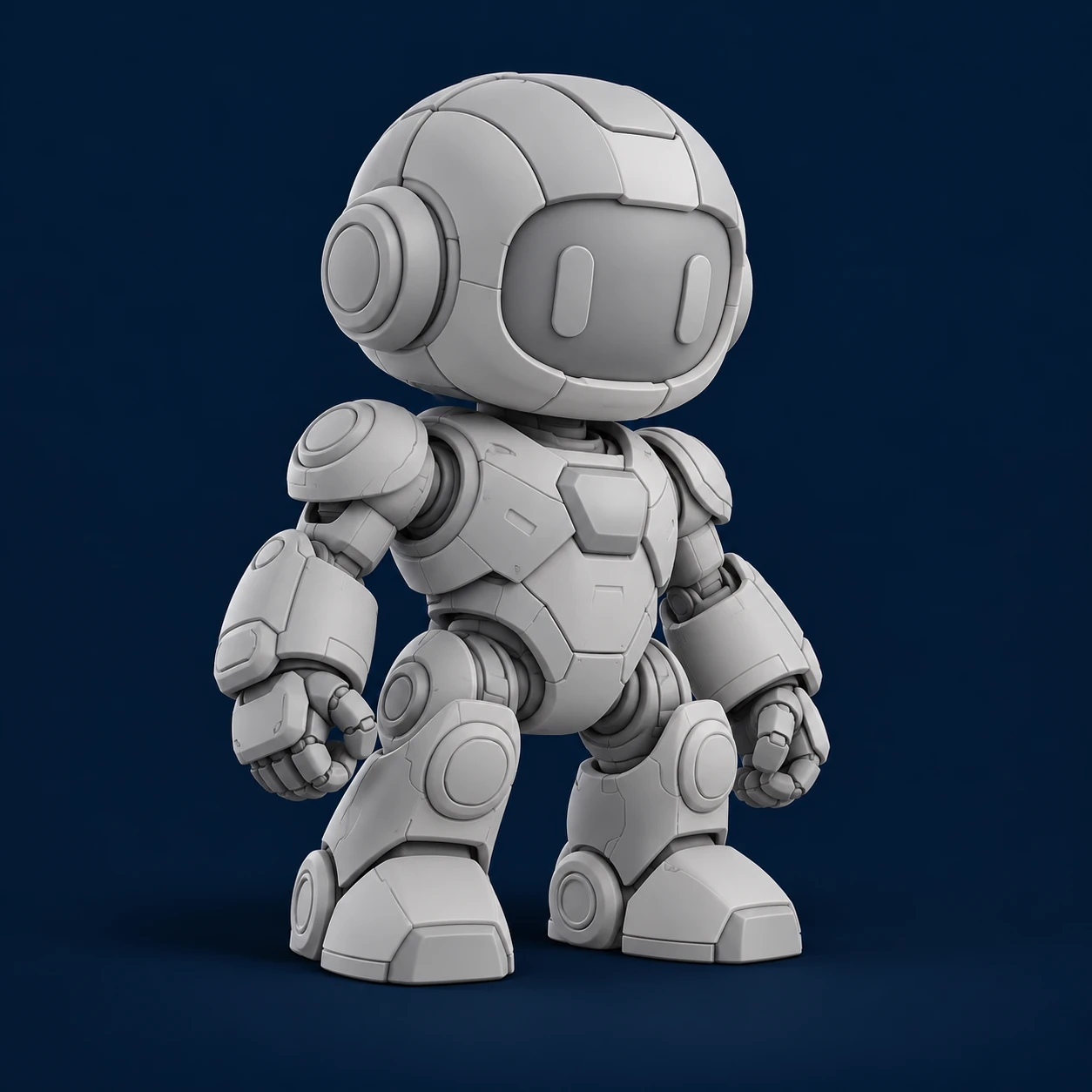
Illustration of an uncolored gray robot model

Start with plain geometry

Illustration of a robot with ivory, teal, charcoal and orange color regions

Plan a practical four-color palette

Concept illustrations of an uncolored model and a four-color plan, not software screenshots or photographs of a finished print.

How to color a model in Orca Slicer

Step 1: Import your model

Open Orca Slicer and import your STL or 3MF.

An STL is a useful starting point for an uncolored model. If you already have a painted Orca Slicer project, open its 3MF project file to continue editing.

When opening a 3MF from another application, check what Orca Slicer actually imports. Geometry, colors, parts, and printer settings may not all transfer in the same way.

Confirm the model’s dimensions and orientation before spending time painting.

Step 2: Select your printer and print settings

Choose the printer profile and nozzle size that match your machine.

Review the build plate, layer height, supports, and material settings. If an imported project includes another printer’s settings, replace them with settings appropriate for your printer.

Decide how you will print the model before refining small color details. Changing its scale or orientation later can change how those details appear in the sliced layers.

Step 3: Add and identify your filaments

Add the filament entries you intend to use.

Give each entry the appropriate material profile and a display color that resembles its real spool. For example, a simple character might use:

  • Filament 1: white for the body.
  • Filament 2: black for the eyes.
  • Filament 3: orange for a decorative detail.

Display colors help you understand the preview. The physical print’s colors come from the filament actually loaded in the printer.

Before printing, verify that the project’s filament assignments correspond to the correct physical spools, feeder slots, or extruders.

Step 4: Choose part assignment or surface painting

There are two useful ways to assign colors:

Assign a filament to a separate part when the model already contains distinct components, such as a base, body, and accessory.

Use surface painting when several colors need to appear on one continuous mesh, such as eyes, clothing, lettering, or decorative patterns.

A single STL does not automatically contain separate selectable parts for every visual feature. If its details belong to one mesh, painting is usually the more useful approach.

Step 5: Open Color Painting

Select the model in the Prepare view and open Color Painting.

Choose the filament you want to apply, then select a painting tool. Orca Slicer provides Circle, Sphere, Triangle, Height Range, and Fill tools, plus a Gap Fill option.

Begin with the larger color areas. Add smaller details after the main palette looks right.

Step 6: Paint and inspect every side

Rotate and zoom the model while working.

Check the front, back, sides, top, and underside. Pay attention to recessed areas and narrow gaps where a stroke may leave unwanted patches.

For example, when painting a character’s eyes:

  1. Select the eye filament.
  2. Zoom in until the boundary is easy to see.
  3. Use a small brush or suitable selection tool.
  4. Rotate the model to check the edges.
  5. Correct any color that extends onto the surrounding face.

Save your work before making extensive changes.

Step 7: Slice the plate and inspect the filament preview

Slice the plate, then choose a preview coloring mode that displays filament assignments.

Move through the layers and inspect the areas you painted. Confirm that:

  • Each intended color appears in the toolpaths.
  • Small details survive slicing.
  • Unwanted patches do not introduce extra color changes.
  • Supports and any prime tower fit on the plate.
  • Estimated material use and print time are acceptable.

The painted model is a design preview. The sliced toolpaths show what the printer has been instructed to produce.

Step 8: Save the project and export the print file

Save the editable Orca Slicer project as 3MF.

Then export the printer-ready file using the workflow appropriate for your machine.

Keep the project and print file together. The project lets you revisit painting and settings; the printer-ready file contains the instructions generated for that particular setup.

If you change the printer, nozzle, material, scale, or important process settings, slice again before printing.

Which color painting tool should you use?

Choose the tool based on the shape of the area you want to color.

Which color painting tool should you use?
ToolUseful forWhat to check
CircleBrush strokes and visible surface detailsBrush size and the edges of each stroke
SpherePainting around curved featuresNearby hidden surfaces can also be affected
TriangleSelecting individual mesh facesPrecision depends on the mesh’s triangles
Height RangeHorizontal bands or selected height intervalsInspect the resulting layers after slicing
FillQuickly coloring a connected areaCheck where the filled area stops
Gap FillClosing small gaps between strokesConfirm that intentional narrow details remain

Sphere painting can reach surfaces you cannot currently see when they fall inside the brush radius. Triangle painting follows the model’s mesh faces, while Gap Fill closes small unpainted areas according to its configured size.

For detailed work, combine tools. Fill can establish a large area, and smaller strokes can refine its boundary.

Should you use STL or 3MF?

Use STL to bring in plain geometry. Use an Orca Slicer project 3MF to save your painted slicing project.

Standard STL does not retain your multicolor painting assignments. Exporting a painted model as STL is therefore not a way to preserve the complete color workflow.

3MF can carry geometry alongside color, material, and other information. However, the information written into a file and the receiving application’s support determine what transfers successfully.

A colored 3MF and a slicer project are not always the same thing

A 3MF may contain model color data, separate components, application-specific painting information, or a fuller slicing project.

A file displaying correctly in one application does not guarantee that another slicer will interpret every color as a printable filament assignment.

After importing a colored 3MF into Orca Slicer, check:

  1. Whether the geometry and dimensions are correct.
  2. Whether the expected color regions or parts are present.
  3. Whether those regions are assigned to usable filaments.
  4. Whether the assignments remain visible after slicing.

How to use PrintNext with Orca Slicer

Want a simpler starting point for coloring? PrintNext Color Studio brings AI-assisted coloring, selectable regions and hands-on painting together in your browser. Explore your model’s appearance before handling printer-specific settings in OrcaSlicer.

Start with your color idea

Describe the look you want and use Automatic Coloring to create a starting point. Refine the result with Manual Coloring, choose your filament palette, and review every side before exporting. Automatic Coloring uses AI credits; hands-on coloring does not use AI credits, and account output limits still apply.

Choose the workflow that fits your model

How to use PrintNext with Orca Slicer
Your goalPrintNext Color StudioOrcaSlicer
Explore a color schemeStart from a prompt with AI-assisted coloring, then refine the result.Assign filaments using painting tools and part assignments.
Work on specific detailsUse prepared regions where available, plus manual painting tools.Use Circle, Sphere, Triangle, Height Range and Fill.
Prepare the physical printExport a multicolor 3MF for slicer review.Set up the printer, map filaments, generate toolpaths and inspect layers.

Color Studio can simplify getting started when you want help developing a color scheme. For a model that only needs a few simple assignments, painting directly in OrcaSlicer may already be sufficient. Whichever route you choose, verify the final sliced result.

The PrintNext-to-Orca workflow

  1. Upload your STL to Color Studio.
  2. Color the model using AI or manual tools.
  3. Review and refine the color regions.
  4. Keep the palette practical for your printer and available filament.
  5. Export the multicolor 3MF.
  6. Open the file in Orca Slicer and inspect the imported assignments.
  7. Select your printer, map filaments, and configure the print.
  8. Slice and check the layer preview before printing.

The handoff still needs a slicer review. If colors or assignments do not import as expected, resolve them before exporting the printer-ready file.

  1. 01Color in PrintNext
  2. 02Export multicolor 3MF
  3. 03Verify and slice in OrcaSlicer
Try Color Studio

Try the coloring demo before signing up.

How to reduce filament waste and print time

Multicolor printing can add material use and time because the printer may need to switch filaments repeatedly.

The number of colors alone does not tell you how expensive a print will be. Where those colors appear across the layers also matters.

A small eye detail extending through many layers can introduce repeated changes. A large base printed entirely below a differently colored body may require fewer transitions.

Start with a simpler palette

For an initial test, use two to four colors that make the important details clear.

Combine similar shades when the difference will be difficult to notice on the finished print. Remove accidental patches that introduce an extra filament for a tiny area.

Compare orientations

Try an alternative orientation and slice again.

An orientation that reduces color changes may increase support requirements or affect surface quality, so compare the complete result rather than optimizing only one estimate.

Review flushing and the prime tower

Use settings appropriate for your printer and filament-changing system.

A prime tower helps stabilize extrusion around material changes. Orca Slicer documents it as a way to reduce appearance defects associated with nozzle residue and pressure changes.

Do not remove flushing or tower requirements simply to lower the displayed material estimate. Check the sliced result and validate changes with a small print.

Test the difficult detail first

Before committing to a long print, use a smaller test that includes an important color boundary or fine feature.

Check whether the detail prints clearly, whether transitions are clean, and whether the physical spool colors create enough contrast.

Troubleshooting Orca Slicer color painting

The Color Painting tool is unavailable

Confirm that you are in the Prepare view and have selected a printable mesh object.

If you cannot access the tool, check your Orca Slicer version and whether the imported item is a model rather than another type of project element.

Fill paints more of the model than expected

The area you see as a separate feature may still belong to a connected surface.

Undo the fill and try a smaller brush or Triangle painting around the boundary. For future models, distinct geometry or separate components can make color assignment easier.

Painting changes the opposite side of the model

Check whether you are using the Sphere tool.

Its brush volume can include hidden surfaces. Reduce its size, rotate the model to inspect the affected area, or use another tool for the detail.

Small painted details disappear after slicing

A visible painted feature may be too narrow for the selected scale, nozzle, or extrusion settings.

Inspect the layer preview around the detail. Try enlarging the feature or model, simplifying its shape, or adjusting suitable print settings. Slice again after each change.

My imported 3MF appears in one color

First determine whether the file contains printable filament assignments or only visual color information.

Check the object and part assignments in Orca Slicer. If the exporter’s color representation is not interpreted as expected, use a compatible export workflow or assign the colors inside Orca Slicer.

Renaming an STL to .3mf does not add color data.

The preview colors do not match my loaded spools

Check both the project’s filament entries and the mapping used when sending the print.

A blue display color does not make the printer load a blue spool. The physical filament assignment must match your intended palette.

The print has unexpected streaks after color changes

Check the transition settings, filament profiles, and your printer’s material-changing procedure.

Test the problematic transition on a smaller model before repeating a long job. Correcting color contamination may require different flushing settings.

The estimated print time is much longer than expected

Inspect how often the printer changes filament.

Look for colors repeated on many layers, accidental painted patches, and details that use a separate filament without adding much to the finished model.

Compare a simplified palette or different orientation, then review the new estimates.

Final multicolor printing checklist

Before starting the print, confirm:

  • The selected printer, nozzle, and build plate match your machine.
  • The model has the intended dimensions and orientation.
  • Mesh warnings have been investigated.
  • All intended colors appear in the sliced filament preview.
  • Project filaments map to the correct physical spools or extruders.
  • The loaded materials suit the selected profiles.
  • Supports and any prime tower fit on the plate.
  • Color-change settings match your hardware or manual workflow.
  • Each spool has enough filament for its estimated use.
  • Print time and material consumption are acceptable.
  • The editable 3MF project is saved.
  • The printer-ready file comes from the final reviewed slice.

FAQ

Common questions

Can you color an STL in Orca Slicer?

Yes. Import the STL and use Color Painting to assign filaments to areas of its surface. Save the result as an Orca Slicer 3MF project to retain your editable painting and project setup.

Does an STL file store colors?

Standard STL stores the model’s geometry without the color assignments needed for this workflow. Use a suitable 3MF export or slicer project when those assignments need to be retained.

Do I need a multicolor printer to use Color Painting?

You can plan and paint the model before having automatic color-changing hardware. Printing the result requires a setup that can perform the necessary changes. Manual changes can work for simpler designs when the printer and firmware are configured appropriately.

Can I print several colors with a single extruder?

Yes, by changing the filament used by that extruder. Automatic systems handle repeated changes; manual workflows are better suited to a manageable number of transitions.

Why does a colored 3MF open without its colors?

The file may contain color information that the receiving slicer does not interpret as filament assignments. Check the exporter’s compatibility, imported parts, and Orca Slicer’s assignments before slicing.

Can I use PrintNext before Orca Slicer?

Yes. Use PrintNext Color Studio to prepare and refine your model’s colors, export a multicolor 3MF, and then check the imported result in Orca Slicer. Complete printer setup, filament mapping, and slicing there.

Will the physical print look exactly like the screen preview?

Not necessarily. Real filament shades, lighting, surface finish, layer lines, and printable detail size affect the result. Use the sliced preview to check toolpaths and a physical test to evaluate appearance.

How many colors should I use for my first print?

Two to four is a practical starting point. Choose a palette that fits your printer’s capabilities and makes the model’s important features easy to recognize.

Does adding more colors always create more waste?

Waste depends on the printer, transition settings, and the number and arrangement of filament changes. Compare sliced estimates instead of judging by palette size alone.

Prepare your next multicolor print

Start with a printable model, choose a practical palette, and verify every assignment in the sliced preview. Use PrintNext Color Studio for AI-assisted coloring and manual refinement before slicing.

Start coloring an STL