Start with the first layer
Many print quality issues start at the bed. Check bed leveling, nozzle height, bed temperature, surface cleanliness, and adhesion before chasing advanced settings.
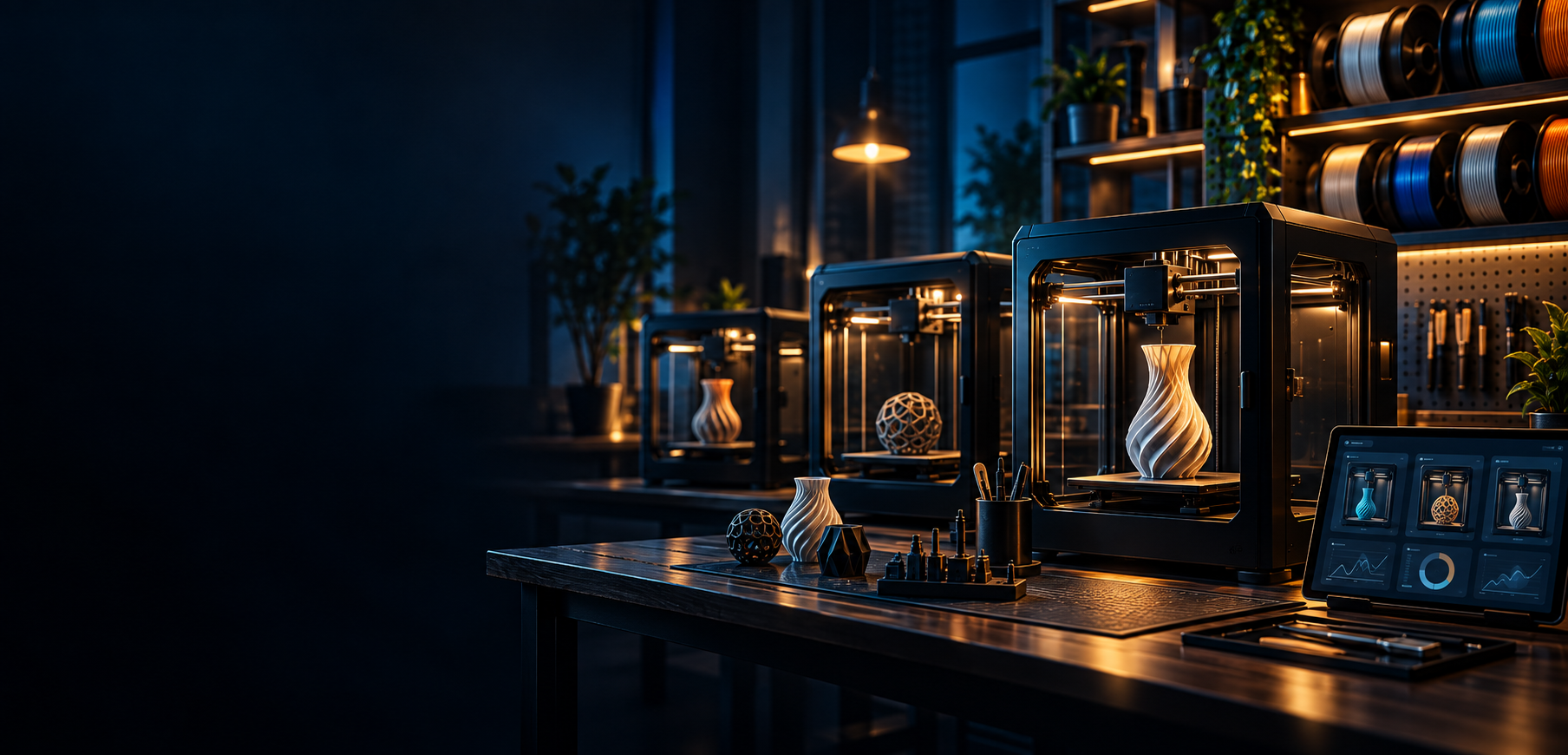
Improve 3D print quality by diagnosing first layer issues, temperature problems, stringing, supports, layer lines, speed, and filament condition.
Last updated 2026-09-30
Step 1
Check first layer
Step 2
Dry filament
Step 3
Tune temperature
Step 4
Inspect supports
Step 5
Adjust speed
Step 6
Record settings
Browse recommendation pages matched to this topic, then use PrintNext to connect the model, printer, filament, cost, and finished result.
Beginner-friendly prints
Browse beginner-friendly 3D print recommendations that are simple, useful, low-risk, and matched to your printer and filament workflow.
Useful and practical prints
Discover functional 3D print recommendations for organizers, holders, clips, brackets, printer accessories, repair parts, and practical projects.
Many print quality issues start at the bed. Check bed leveling, nozzle height, bed temperature, surface cleanliness, and adhesion before chasing advanced settings.
PLA, PETG, ABS, TPU, and specialty filaments need different temperatures, cooling, and speeds. Use manufacturer guidance as a starting point, then test on your printer.
If you change speed, temperature, retraction, cooling, and supports all at once, it is hard to know what fixed the issue.
PrintNext projects and printer context help you keep successful settings tied to the material and model where they worked.
Quality can mean smooth surfaces, readable text, dimensional fit, or reliable function. Those goals can conflict with speed or support placement. Name the visible defect and preserve a baseline so each adjustment answers a useful question.
Raised lettering can look sharp in the model and disappear in the sliced preview. That points toward feature size or slicing behavior, not a dirty nozzle. If the paths exist but the physical lettering is poor, investigate printing conditions. Separating these stages avoids tuning the wrong part of the workflow.
Use the symptom to choose the next check. Change one variable at a time and keep the original file or settings so you can compare the result.
| What you notice | What to check next |
|---|---|
| Fine details disappear before printing | Inspect scale, line paths, and feature geometry. |
| One side looks worse than the other | Consider orientation, cooling, supports, and nearby geometry. |
| Quality improves but time doubles | Decide whether the visible improvement matters for this specific job. |
FAQ
Start with the first layer, filament condition, and correct material temperature before advanced slicer tuning.
Stringing can come from wet filament, high nozzle temperature, insufficient retraction, travel settings, or material behavior.
Rough surfaces can come from temperature, speed, cooling, moisture, support interfaces, or model orientation.
PrintNext helps keep printer, filament, and project history together so successful settings are easier to repeat.
Your next step
Open your workspace to organize model files, settings, and project notes so you can return to the right version for your next print.
Find models that fit your printer, filament, and workflow.
Color STL models with AI or manual tools and export a slicer-ready multicolor 3MF.
Keep model files, notes, revisions, and print plans together.
Track filament colors, materials, and remaining spool amounts.
Explore approved models and real PrintNext creations.
These pages connect the same workflow from file format decisions to color planning, inventory, and print cost.
Troubleshooting & Quality
Diagnose failed 3D prints, from bed adhesion and layer shifts to stringing, warping, and supports. Change one variable at a time and verify the fix.
Troubleshooting & Quality
Learn how to identify and repair broken STL files before printing, including holes, non-manifold geometry, flipped normals, bad meshes, and slicer warnings.